Login (iOS SDK)
Overview
Our SDK provides a set of components for secure-input of authentication credentials for various scenarios. This section covers:
- Password-based authentication
- Passcode-based authentication
- OTP (One-Time Password) verification
Each component is designed with security features, including built-in text masking, secure handling, and proper validation.
The components allow a user to input their credentials in a secure fashion, which is converted into a user session token. This can then be used to execute requests with our API, allowing the user to interact with their financial instruments and our services.
Component types
1. Password Component (SecurePasswordField)
Use this component for password-based authentication (something you know). It ensures secure text input with masking and validation.
Integration
- Programmatically
- Storyboard
lazy var securePasswordField: SecurePasswordField = {
    let textField = SecurePasswordField()
    textField.placeholder = "Passcode"
    textField.frame = CGRect(x: 10, y: 100, width: 300, height: 30)
    return textField
}()
This can be achieved by dragging and dropping the UITextField component to your storyboard. After that, go to the component's Identity inspector and type SecurePasswordField in the Class block, and WeavrComponents in the Module block.
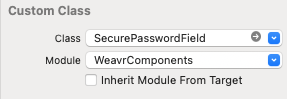
At this point, If you hit ctrl + R or click run at Xcode, you can see the password mobile component in your device/Simulator.
Security features
- Secure text masking
- Input type enforcement
- Maximum length validation (100 characters)
- Secure text handling
2. Passcode Component (SecurePasscodeField and SecurePasscodeFieldStack)
We offer two components to let your users enter a passcode (e.g. 4-8 digit PIN).
The first component, SecurePasscodeField presents the passcode input as a single field:
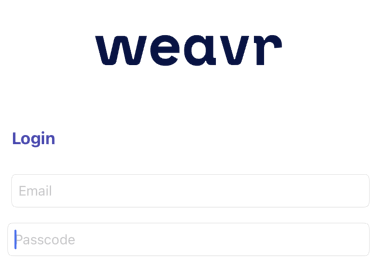
The second component, SecurePasscodeFieldStack presents the passcode as one input per digit to enter:
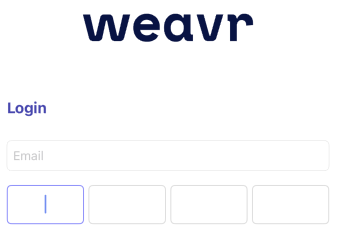
You can chose a component based on whatever best fits your user interface.
Using the SecurePasscodeField
- Programmatically
- Storyboard
lazy var securePasscodeField: SecurePasscodeField = {
    let textField = SecurePasscodeField()
    textField.placeholder = "Passcode"
    textField.frame = CGRect(x: 10, y: 100, width: 300, height: 30)
    return textField
}()
This can be achieved by dragging and dropping the UITextField component to your storyboard. After that, go to the component's Identity inspector and type SecurePasscodeField in the Class block, and WeavrComponents in the Module block.
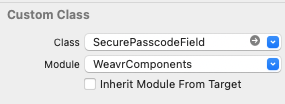
At this point, If you hit ctrl + R or click run at Xcode, you can see the passcode mobile component in your device/Simulator.
Using the SecurePasscodeFieldStack
- Programmatically
- Storyboard
lazy var securePasscodeFieldStack: SecurePasscodeFieldStack = {
    let textField = SecurePasscodeFieldStack()
    textField.frame = CGRect(x: 10, y: 100, width: 300, height: 30)
    textField.show()
    return textField
}()
This can be achieved by drag and dropping the UIStackView component to your storyboard. After that go to the component's Identity inspector and type SecurePasscodeFieldStack in the Class block, and WeavrComponents in the Module block.
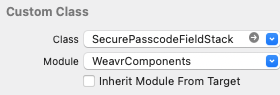
At this point, If you hit ctrl + R or click run at Xcode, you can see the passcode stack mobile component in your device/Simulator.
3. OTP Component (SecureSmsOtpFields)
For One-Time Passwords (6 digits, segmented).
- Programmatically
- Storyboard
lazy var SecureSmsOtpFields: SecureSmsOtpFields = {
    let textField = SecureSmsOtpFields()
    textField.placeholder = "One-Time Password"
    textField.frame = CGRect(x: 10, y: 100, width: 300, height: 30)
    return textField
}()
This can be achieved by drag and dropping the UITextField component to your storyboard. After that go to the component's Identity inspector and type SecureSmsOtpFields in the Class block, and WeavrComponents in the Module block.
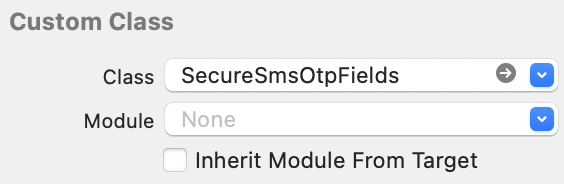
At this point, If you hit ctrl + R or click run at Xcode, you can see the passcode mobile component in your device/Simulator.
Listeners
Both SecurePasswordField, SecurePasscodeField, and SecureSmsOtpFields support setting a
TextEntryCompleteDelegate that notifies you if the user enters an input matching the maximum length of the password.
If you are logging in the user via a passcode, this usually will be the trigger for the login process.
On the other hand, when the user enters a password, you'll likely want to let the user tap on the login button before logging them in.
The next snippet showcases how to use TextEntryCompleteDelegate.
class MyViewController: UIViewController {
    @IBOutlet weak var mySecurePasscode: SecurePasscodeField!

    override func viewDidLoad() {
        super.viewDidLoad()
        mySecurePasscode.textEntryCompleteDelegate = self
    }
}

extension MyViewController: TextEntryCompleteDelegate {
    func onTextEntryComplete(_ textField: SecureTextField) {
        print("Passcode completed!")
    }
}
Meanwhile, SecurePasscodeFieldStack supports SecurePasscodeFieldStackDelegate, which informs you of:
- Focus change
- Text entry completed
The following snippet demonstrates how to use it:
class MyViewController: UIViewController {
    @IBOutlet weak var mySecurePasscode: SecurePasscodeFieldStack!

    override func viewDidLoad() {
        super.viewDidLoad()
        mySecurePasscode.delegate = self
    }
}

extension MyViewController: SecurePasscodeFieldStackDelegate {
    func onFocusChange(index: Int, focused: Bool) {
        print("Input at index \(index) is \(focused ? "focused" : "not focused")")
    }

    func onTextEntryComplete() {
        print("Passcode completed!")
    }
}
This is useful for:
- Tracking user input progress
- Implementing custom focus-based animations
- Adding visual feedback when segments gain/lose focus
- Handling focus-based validation
3. OTP Component (SecureSmsOtpFields)
For One-Time Passwords (6 digits, segmented).
- Programmatically
- Storyboard
lazy var SecureSmsOtpFields: SecureSmsOtpFields = {
    let textField = SecureSmsOtpFields()
    textField.placeholder = "One-Time Password"
    textField.frame = CGRect(x: 10, y: 100, width: 300, height: 30)
    return textField
}()
This can be achieved by dragging and dropping the UITextField component to your storyboard. After that, go to the component's Identity inspector and type SecureSmsOtpFields in the Class block, and WeavrComponents in the Module block.
At this point, If you hit ctrl + R or click run at Xcode, you can see the passcode mobile component in your device/Simulator.
Common features
All components share these security features:
- Secure text masking
- Input type enforcement
- Length validation
- Secure text handling
- Tokenisation support
- Error handling
- UI customisation options
Token management
The login components are used to create a tokenized representations of the user input; allowing you to send sensitive information to our servers without interacting directly with it.
By transmitting and receiving PCI-sensitive data in tokenised form, you qualify for the lowest level of PCI compliance.
Creating tokens
LoginComponents allow to create a token via the createToken function. The following snippet showcases how to use it:
class MyViewController: UIViewController {
    @IBOutlet weak var mySecurePasscode: SecurePasscodeField!

    func tokenizePassword() {
        mySecurePasscode.createToken { result in
            switch result {
            case .failure(let error):
                print("Something went wrong \(error)")
            case .success(let tokens):
                print("Token: \(tokens.first?.value ?? "No token")")
            }
        }
    }
}
Additionally, you can avoid multiple round-trips to our servers by grouping multiple tokenisation requests into one.
You can read more on group tokenization here.
Setting user token
After a successful login, you should set the user access token within the SDK via:
UXComponents.setUserToken(token: token) { result in
    switch result {
    case .failure(let e):
        print("Something went wrong: \(e)")
    case .success(let result):
        print("User token associated: \(result)")
    }
}
Verifying token association
At any point in time, you can validate if a token is available by checking if there's an associated user:
let isAssociated = UXComponents.isAssociated()
Resetting user association
When the user logs out of your application, you can reset the association with:
UXComponents.resetAssociation()
Security considerations
- Always use secure input types (isSecureTextEntry = true)
- Implement proper error handling
- Use appropriate token management
- Follow biometric authentication guidelines when using passcodes
- Validate input length and format