Verify users (iOS SDK)
Our SDK provides a set of components for secure-input of authentication credentials for various scenarios. This section covers our Password component, for password-based authentication.
Each component is designed with security features, including built-in text masking, secure handling, and proper validation.
The components allow a user to input their credentials in a secure fashion, which is converted into a user session token. This can then be used to execute requests with our API, allowing the user to interact with their financial instrumentsInstrumentA financial product owned by a customer. There are two types: Managed Accounts (stored-value accounts that hold balances and can receive wire transfers) and Managed Cards (prepaid cards - virtual or physical - used for purchases). and our services.
The credential these components collect exists for Strong Customer Authentication - it's the security layer behind your app's own sign-in, and a Weavr user is created only when a customer first reaches a financial feature. Because it isn't a second login, don't present it to customers as a "password" or ask them to "log in" with it. Frame it as a security key for their card or account - embeddersEmbedder (Embedded Finance Provider). A company or developer that integrates Weavr's embedded finance services into their own application to provide financial services to their end customers. commonly call it a backup key or card key, with copy like "To secure your card, set up a backup key." For the full picture, see verifying users.
Choosing a credential-verification approach
There are two ways to submit a password to POST /login_with_password, and the approach you choose determines whether you use our secure components.
Tokenized credential verification (preferred)
Capture the password with our secure component and convert it into a one-time-use token. The password is encrypted inside a view your app cannot read, so your code and servers never see the plaintext. You exchange the token - not the password - for a session.
Use this approach for the standard Weavr security model. Because the plaintext never touches your app, you stay out of PCI DSS scope and qualify for the lightest Self-Assessment Questionnaire. This is the approach the rest of this page documents.
Non-tokenized credential verification
If you don't use our tokenizationTokenizeReplace a card's primary account number (PAN) with a unique digital token that stands in for the real card during a transaction. When a cardholder adds a card to Apple Pay or Google Pay via push provisioning, the wallet provider stores a device-specific token rather than the underlying PAN, so the real card number isn't exposed on the device or shared with merchants. for the password - for example, you already operate a PCI DSS-compliant environment that handles the plaintext securely - capture the password in your own native field, validate it there, then submit the plaintext value to POST /login_with_password from your server.
Accepting a plaintext password at POST /login_with_password requires configuration by our team and isn't something you can turn on yourself in the Weavr portal. Reach out to our support team to enable it before you build this flow.
In this case, don't use our secure component. The component exists to tokenizeTokenizeReplace a card's primary account number (PAN) with a unique digital token that stands in for the real card during a transaction. When a cardholder adds a card to Apple Pay or Google Pay via push provisioning, the wallet provider stores a device-specific token rather than the underlying PAN, so the real card number isn't exposed on the device or shared with merchants. the value inside a sandboxed view; it deliberately gives your code no way to read or validate the plaintext a user types, so it can't back a flow that needs the raw password.
TokenizedTokenizeReplace a card's primary account number (PAN) with a unique digital token that stands in for the real card during a transaction. When a cardholder adds a card to Apple Pay or Google Pay via push provisioning, the wallet provider stores a device-specific token rather than the underlying PAN, so the real card number isn't exposed on the device or shared with merchants. credential verification is preferred for every integration that doesn't already carry its own PCI DSS obligations, because it keeps the plaintext password out of your systems entirely.
Where each component fits in your login screen
These components each render one credential field inside a tokenizedTokenizeReplace a card's primary account number (PAN) with a unique digital token that stands in for the real card during a transaction. When a cardholder adds a card to Apple Pay or Google Pay via push provisioning, the wallet provider stores a device-specific token rather than the underlying PAN, so the real card number isn't exposed on the device or shared with merchants. view. The mockup below shows where they typically appear in your app - hover the numbered hotspots for the underlying class names.
Sign in
Welcome back
Hover or focus a numbered hotspot to see which secure component renders each field - click to jump to its docs.
Features
All components share these security features:
- Secure text masking
- Input type enforcement
- Length validation
- Secure text handling
- TokenizationTokenizeReplace a card's primary account number (PAN) with a unique digital token that stands in for the real card during a transaction. When a cardholder adds a card to Apple Pay or Google Pay via push provisioning, the wallet provider stores a device-specific token rather than the underlying PAN, so the real card number isn't exposed on the device or shared with merchants. support
- Error handling
- UI customization options
Password - SecurePasswordField
Use it for: login screens, sign-up password creation, and change-password flows.
Use this component for password-based authentication (something you know). It ensures secure text input with masking and validation.
Password complexity
Customer passwords must satisfy all of the following:
- 8 to 30 characters
- at least one uppercase letter
- at least one lowercase letter
- at least one number
- at least one special character
- different from the user's last 5 passwords
Validate password
Surface these rules in your sign-up and change-password screens before the user submits.
To check a candidate password against the same rules without committing it, call POST
Submit password
The API rejects passwords that don't meet these requirements with AUTH_009 PASSWORD_POLICY_VIOLATION.
Security features
- Secure text masking
- Input type enforcement
- Maximum length validation (100 characters)
- Secure text handling
Integration
- In code
- Storyboard
lazy var securePasswordField: SecurePasswordField = {
    let textField = SecurePasswordField()
    textField.placeholder = "Password"
    textField.frame = CGRect(x: 10, y: 100, width: 300, height: 30)
    return textField
}()
This can be achieved by dragging and dropping the UITextField component to your storyboard. After that, go to the component's Identity inspector and type SecurePasswordField in the Class block, and WeavrComponents in the Module block.
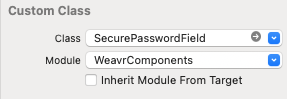
At this point, If you hit ctrl + R or click run at Xcode, you can see the password mobile component in your device/Simulator.
Password visibility toggle
SecurePasswordField shows an optional show/hide button that lets the user reveal the password they're typing. It's turned off by default - set isVisibilityButtonEnabled to turn it on. Toggling visibility only changes what's rendered on screen: the field's text accessors never expose the entered password. Turning the button back off forces the password back to hidden.
Set visibilityIconTint to color the show/hide icon independently of the field's tintColor. Leave it nil to have the icon follow tintColor.
securePasswordField.isVisibilityButtonEnabled = true
securePasswordField.visibilityIconTint = .systemBlue

// Read or set the current visibility state directly, for example to reset it on screen re-entry.
securePasswordField.isPasswordVisible = false
Confirm password
Use it for: sign-up and change-password screens, alongside the Password component.
The Confirm password pattern pairs two SecurePasswordField outlets to check the user entered the same password twice before you submit it. Collect both fields into an array (or dictionary), then read the secureInputsMatch extension property - this checks equality without exposing the plaintext value to your app code.
class MyViewController: UIViewController {
    @IBOutlet weak var securePasswordField: SecurePasswordField!
    @IBOutlet weak var confirmPasswordField: SecurePasswordField!

    override func viewDidLoad() {
        super.viewDidLoad()
        // Re-check on either field, in case the user edits the password after typing the confirmation.
        securePasswordField.addTarget(self, action: #selector(onPasswordChanged), for: .editingChanged)
        confirmPasswordField.addTarget(self, action: #selector(onPasswordChanged), for: .editingChanged)
    }

    @objc func onPasswordChanged() {
        let passwordsMatch = [securePasswordField, confirmPasswordField].secureInputsMatch
        confirmationLabel.text = passwordsMatch ? "Passwords match" : "Passwords don't match"
    }
}
secureInputsMatch resolves to true only when every field in the collection is non-empty and holds the same value, so you never handle the plaintext password directly. Use it to enable your submit button or show inline validation, then create a token and submit the password from one field only - the check itself is a client-side UX safeguard and isn't sent to our servers.
Token management workflow
These components are used to create a tokenizedTokenizeReplace a card's primary account number (PAN) with a unique digital token that stands in for the real card during a transaction. When a cardholder adds a card to Apple Pay or Google Pay via push provisioning, the wallet provider stores a device-specific token rather than the underlying PAN, so the real card number isn't exposed on the device or shared with merchants. representation of the user input, allowing you to send sensitive information to our servers without interacting directly with it.
By transmitting and receiving PCI-sensitive data in tokenized form, you qualify for the lowest level of PCI compliance.
Creating tokens
These components let you create a token via the tokenise() async function, which returns a TokenisationResult. The following snippet showcases how to use it:
class MyViewController: UIViewController {
    @IBOutlet weak var mySecurePasscode: SecurePasscodeField!

    func tokenizePassword() async {
        let result = await mySecurePasscode.tokenise()
        switch result {
        case .success(let tokenisedValue, let traceability):
            print("Token: \(tokenisedValue)")
        case .invalidInput(let traceability):
            // The field value failed local validation before any request was sent, e.g. an
            // empty field. Show an inline validation error instead of retrying.
        case .serverError(let code, let message, let traceability):
            // The server rejected the request. Show a generic error and let the user retry.
        case .networkFailure(let cause, let traceability):
            // The device couldn't reach the server. Retry once connectivity is restored.
        case .failure(let cause, let traceability):
            // An unexpected error occurred. Retry, and share `traceability` with our
            // support team if it keeps happening.
        }
    }
}
Additionally, you can avoid multiple round-trips to our servers by grouping multiple tokenizationTokenizeReplace a card's primary account number (PAN) with a unique digital token that stands in for the real card during a transaction. When a cardholder adds a card to Apple Pay or Google Pay via push provisioning, the wallet provider stores a device-specific token rather than the underlying PAN, so the real card number isn't exposed on the device or shared with merchants. requests into one, and check that fields like password and confirm-password match.
You can read more on matching and bulk tokenization here.
Setting a user token
After a successful login, you should set the user access token within the SDK via setUserToken(token:), an asynchronous method returning an AssociateTokenResult:
let result = await UXComponents.setUserToken(token: token)
switch result {
case .success(let traceability):
    print("User token associated")
case .serverError(let code, let message, let traceability):
    // The server rejected the token, e.g. it's invalid or has expired.
    // Fetch a fresh token from your backend and call setUserToken(token:) again.
case .networkFailure(let cause, let traceability):
    // The device couldn't reach the server. Retry once connectivity is restored.
case .failure(let cause, let traceability):
    // An unexpected error occurred. Retry, and share `traceability` with our
    // support team if it keeps happening.
}
Verifying token association
At any point in time, you can validate if a token is available by checking if there's an associated user:
let isAssociated = UXComponents.isAssociated()
Resetting user association
When the user logs out of your application, you can reset the association with:
UXComponents.resetAssociation()
Listeners
SecurePasswordField supports setting a
TextEntryCompleteDelegate that notifies you if the user enters an input matching the maximum length of the password.
When the user enters a password, you'll likely want to let the user tap on the login button before logging them in.
The next snippet showcases how to use TextEntryCompleteDelegate.
class MyViewController: UIViewController {
    @IBOutlet weak var mySecurePassword: SecurePasswordField!

    override func viewDidLoad() {
        super.viewDidLoad()
        mySecurePassword.textEntryCompleteDelegate = self
    }
}

extension MyViewController: TextEntryCompleteDelegate {
    func onTextEntryComplete(_ textField: SecureTextField) {
        print("Password completed!")
    }
}
Security tips
- Always use secure input types (isSecureTextEntry = true)
- Implement proper error handling
- Use appropriate token management
- Validate input length and format
We support passcodes via our Android SDK, but Apple does not allow this on iOS. See Apple's Human Interface Guidelines on managing accounts.
Frequently asked questions
What happens if a user has already enrolled their device for Biometric Authentication, but then re-installs the app?
In this case, the user needs to re-enroll the device for biometrics. This also applies if the user clears cache or data of the app.
If the configuration of the passcode length changes, what is the impact on existing users?
If the program was configured with a passcode length of 4 digits, and this is changed to 6, the user continues to be able to log in with their existing passcode of 4 digits. However, when they change their passcode (via the "forgot passcode" flow) they are required to choose a passcode with the new length (6 in this example).
How does the forgot passcode flow work?
The forgotten passcode flow is initiated from the Weavr API. If an email has been set for the active user, an email is sent containing a URL that redirects the user to change their passcode.
Does the user have multiple attempts at login and challenges via Biometrics Authentication?
For situations when biometrics fail (wrong fingerprint, not enough light, etc.) the user can retry multiple times. If biometrics continues to fail after too many attempts, it automatically triggers the passcode login, which also allows multiple attempts.
How many retries are available until the user is blocked?
The default value is 3. After 3 failed biometric attempts, the user is presented with the passcode fallback screen, where 3 attempts are also allowed. The passcode is our Authentication passcode that the user chose when they were created as a user on Weavr, not the one that unlocks their device.
When is the user blocked if biometrics and passcode fail and for how long?
After 3 biometric attempts and 3 wrong passcode attempts, the user gets blocked for 30 minutes.